How to Connect Keitaro to CIPIAI: Postback, Offer and Campaign Setup
Connect Keitaro to CIPIAI in 7 steps: global postback, status tokens, the built-in Cipiai.com template, zone_id tracking and a test conversion.


BeMob ships with a CIPIAI template that already knows how to pass the click ID and how to read CIPIAI's conversion statuses. What it can't do for you is the postback on the CIPIAI side and the zone token on the offer URL, and those are the two places where tracking usually breaks. Below are eight steps, from copying the postback in BeMob to pasting a campaign link into your traffic source, with a screenshot of every screen you'll touch.
A BeMob postback for CIPIAI is a server-to-server request that CIPIAI sends to your BeMob tracker each time a conversion is recorded or changes status. It carries the BeMob click ID (cid), the payout and the conversion status, so BeMob can attach the conversion to the exact click, source and zone that produced it. You set it once as a global postback in CIPIAI Tracking Tools, and every flow can reuse it.
Data moves in two directions. BeMob passes its click ID to CIPIAI through the offer URL; CIPIAI returns that click ID with the conversion through the postback.
Before you start, have a BeMob account and an approved CIPIAI webmaster account.
Open Settings → Tracking URLs in BeMob, scroll to S2S Postback URL's and click Copy next to Postback URL. It looks like this:
https://your-bemob-domain/postback?cid=REPLACE&payout=OPTIONAL&txid=OPTIONAL
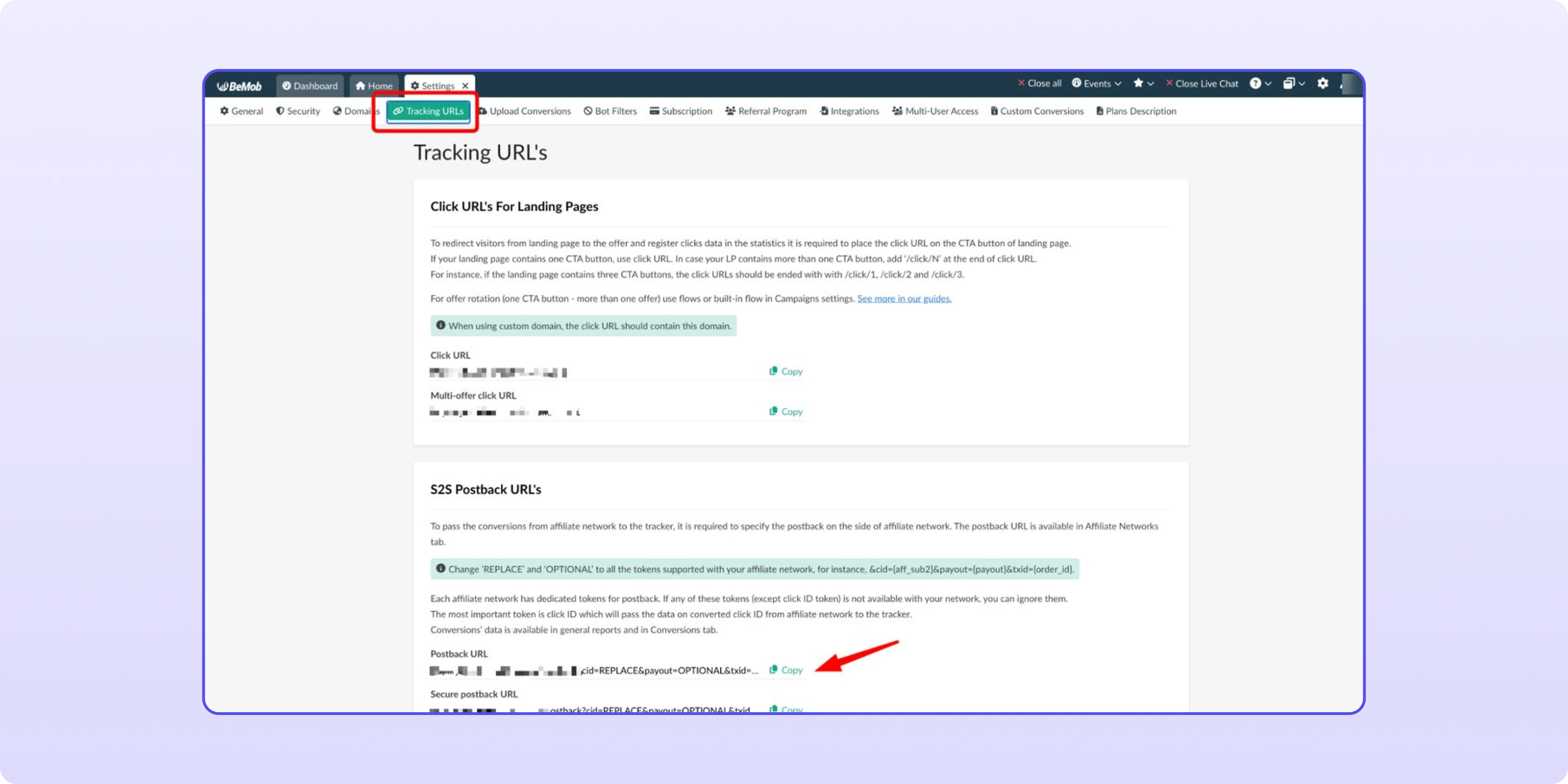
The subdomain in front of bemobtrk.com is unique to your account. Copy the URL exactly as BeMob shows it, and don't post it in public chats: anyone who has it can send conversions to your tracker.
In your CIPIAI account go to Tracking Tools → Postback → Global and paste the URL. Replace everything after ? with CIPIAI tokens:
https://your-bemob-domain/postback?cid={{click_id}}&payout={{payout}}&cnv_status={{goal_status}}
txid from the original URL is optional, so you can drop it. Tick Hold and Approve so BeMob shows a conversion the moment it happens and again when it's confirmed. Add Reject and Decline if you want unconfirmed conversions in your reports too.
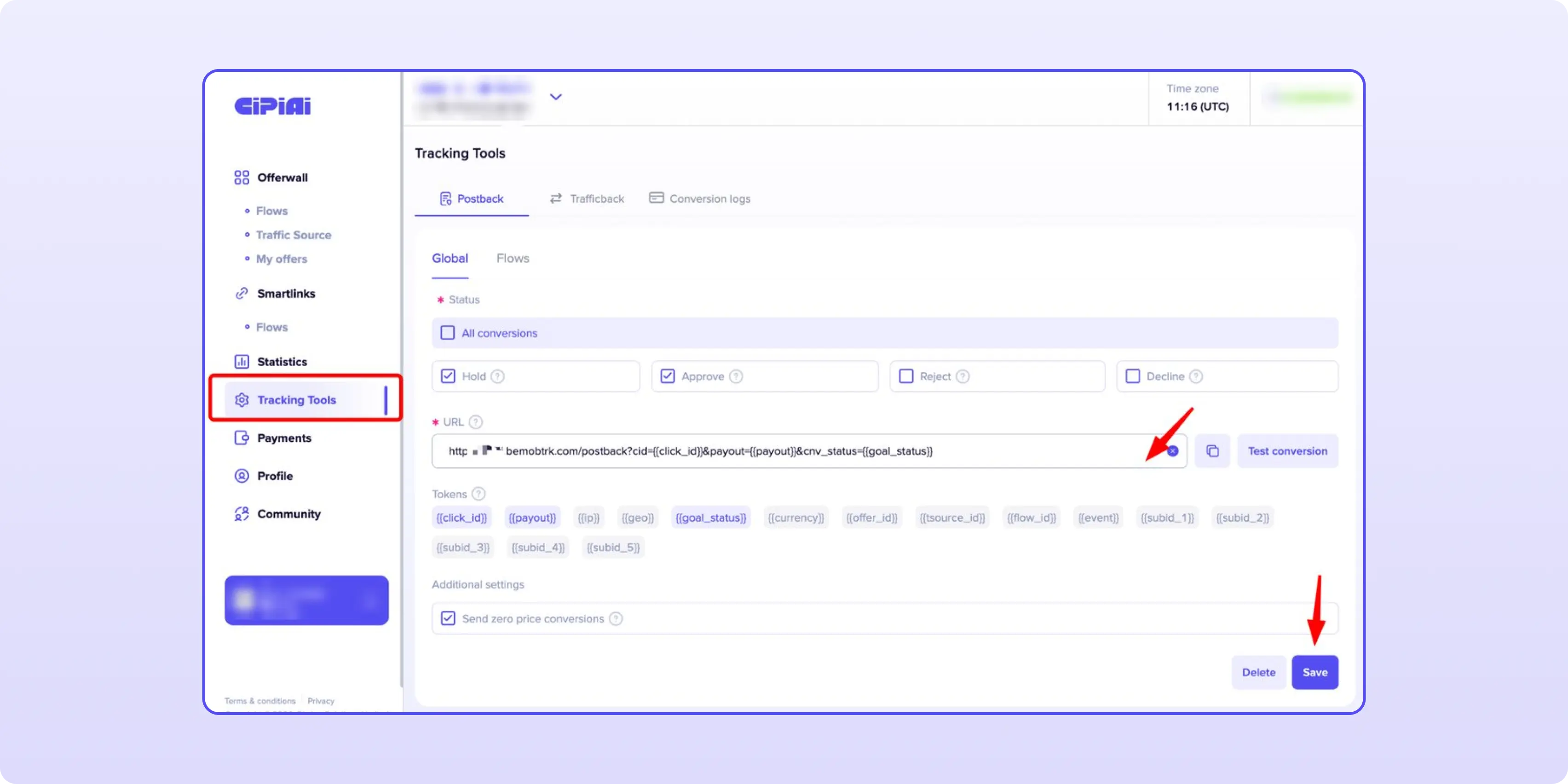
Click Test conversion, wait for the success message, then click Save.
A flow is how CIPIAI ties one offer, one traffic source and one postback together.
1. Open Offerwall, pick the offer and start a new flow.
2. Choose an existing traffic source or create one.
3. Name the flow so you can find it later, e.g. "VPN US Propeller BeMob".
4. In the Postback field, select the global postback you saved in Step 2.
5. Click Submit for moderation.
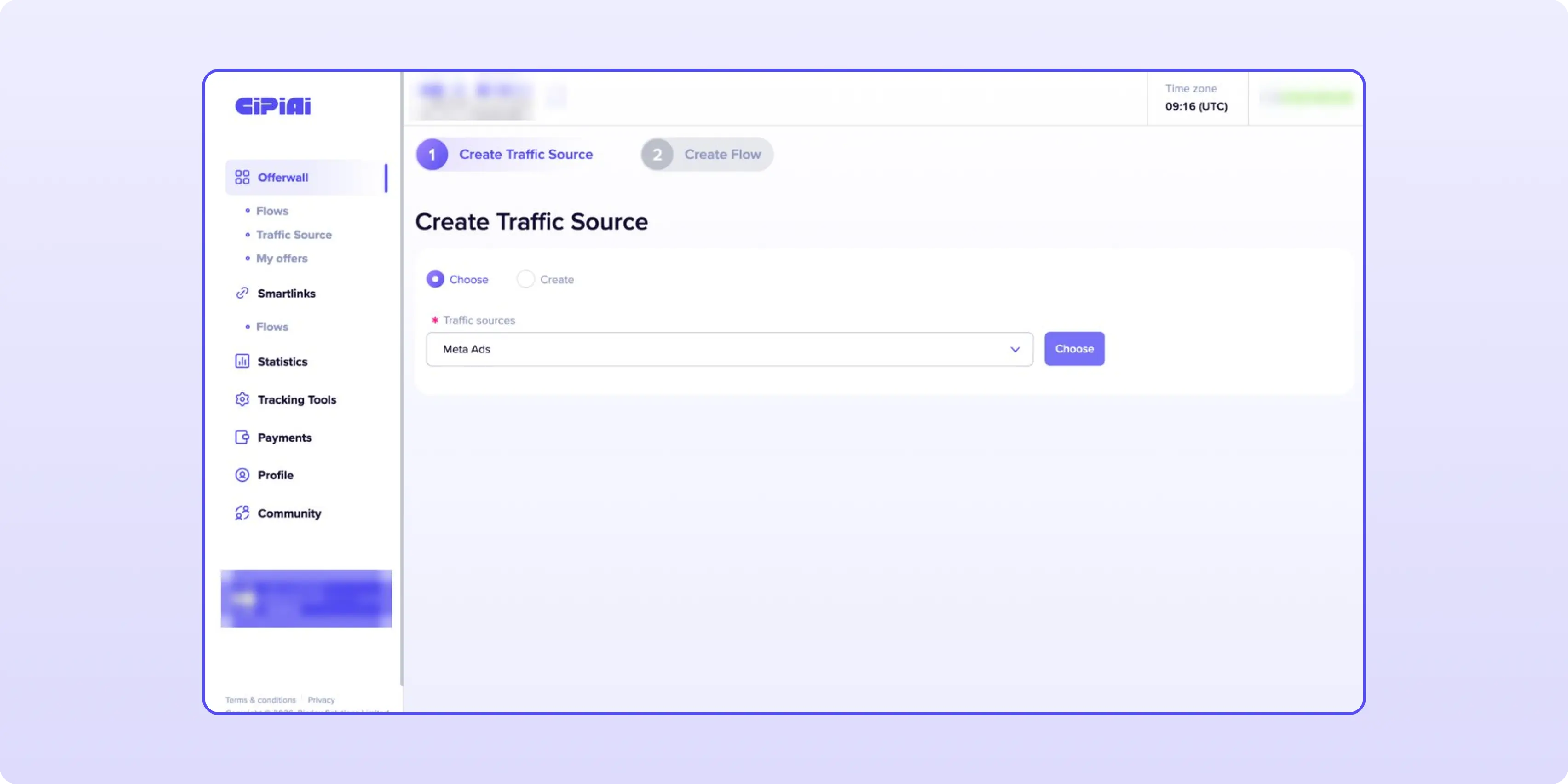
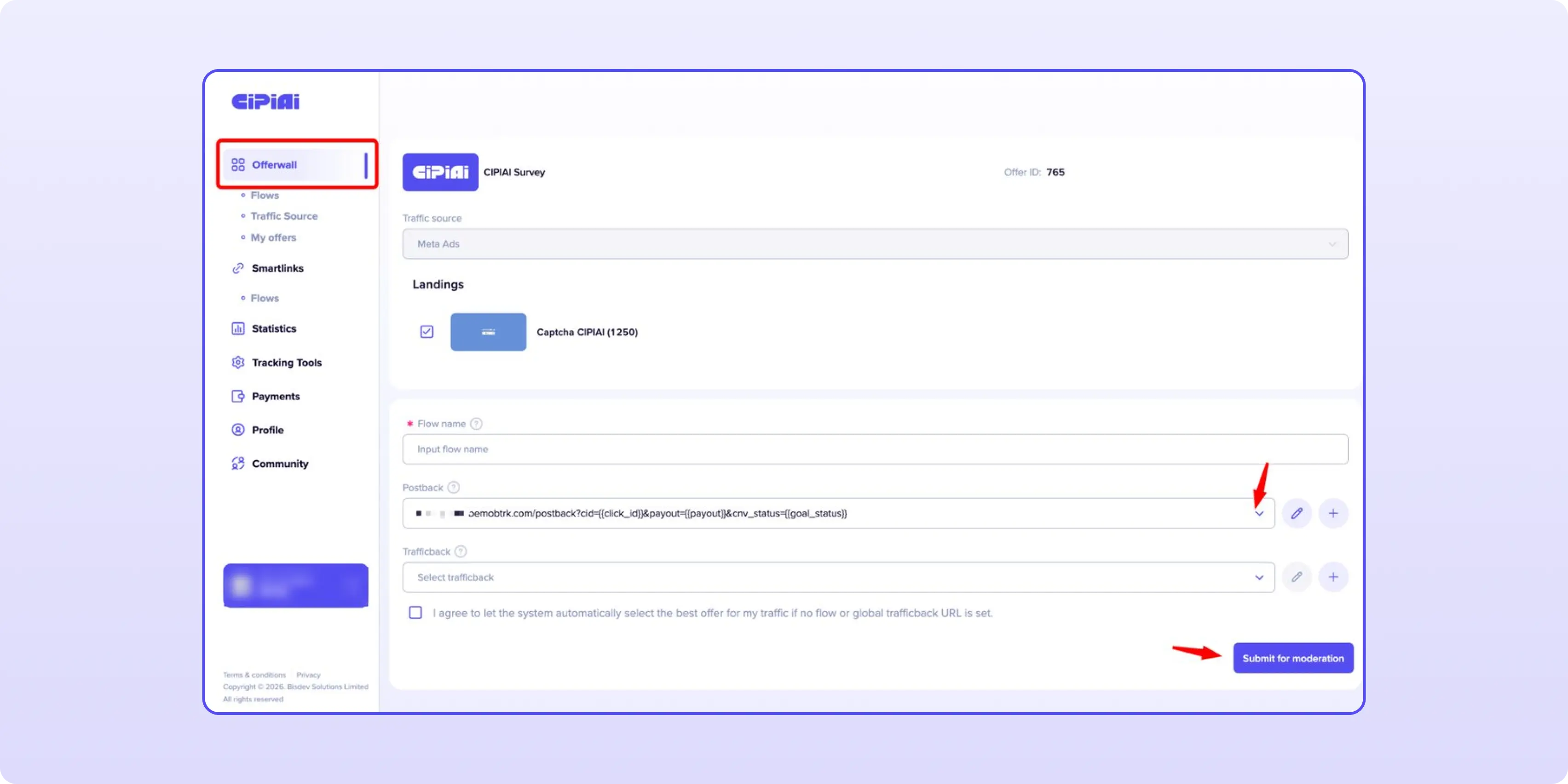
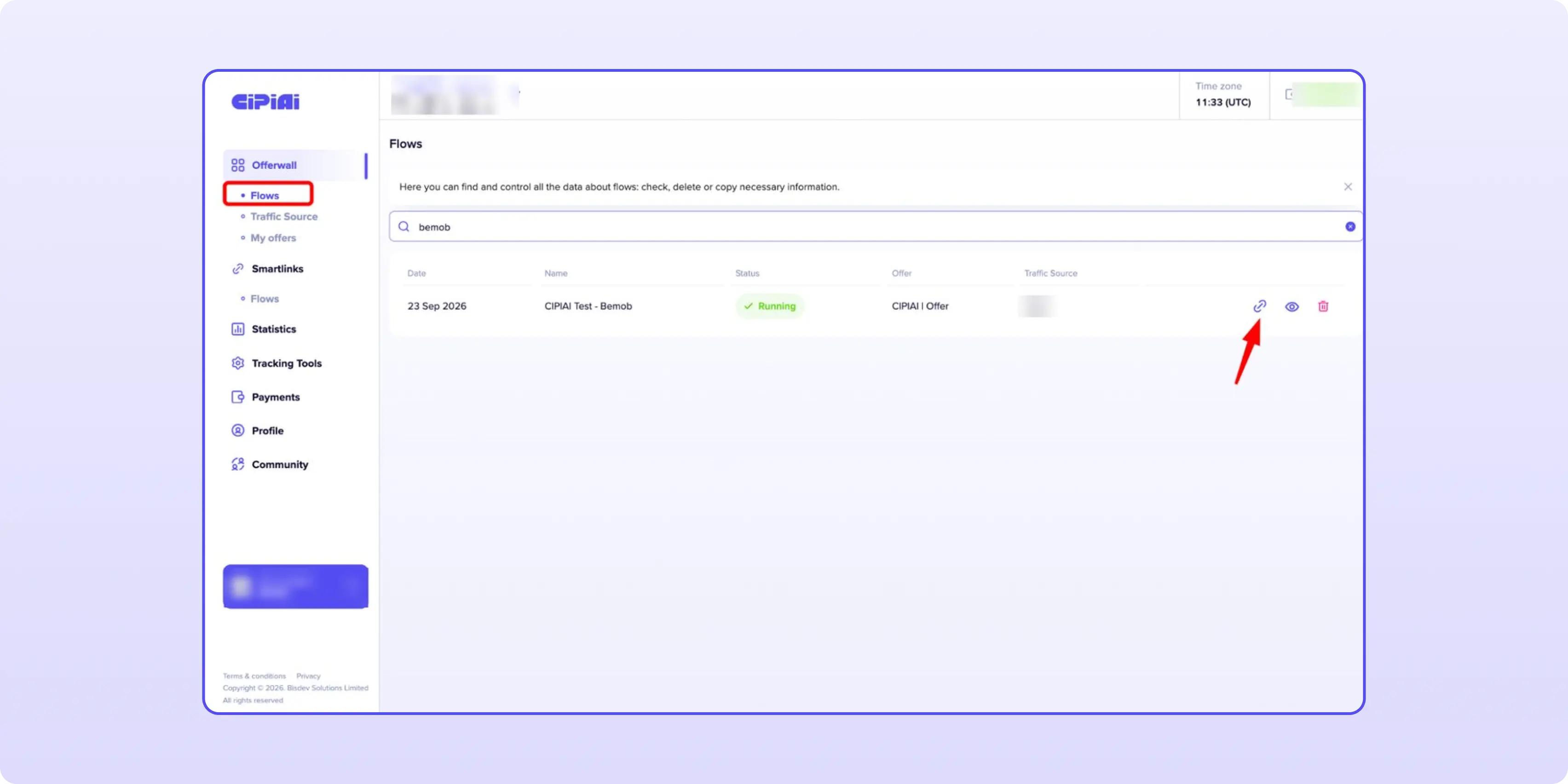
Once the flow is approved, go to Offerwall → Flows, find it by name and click the link icon to copy the tracking link. You'll need it in Step 6.
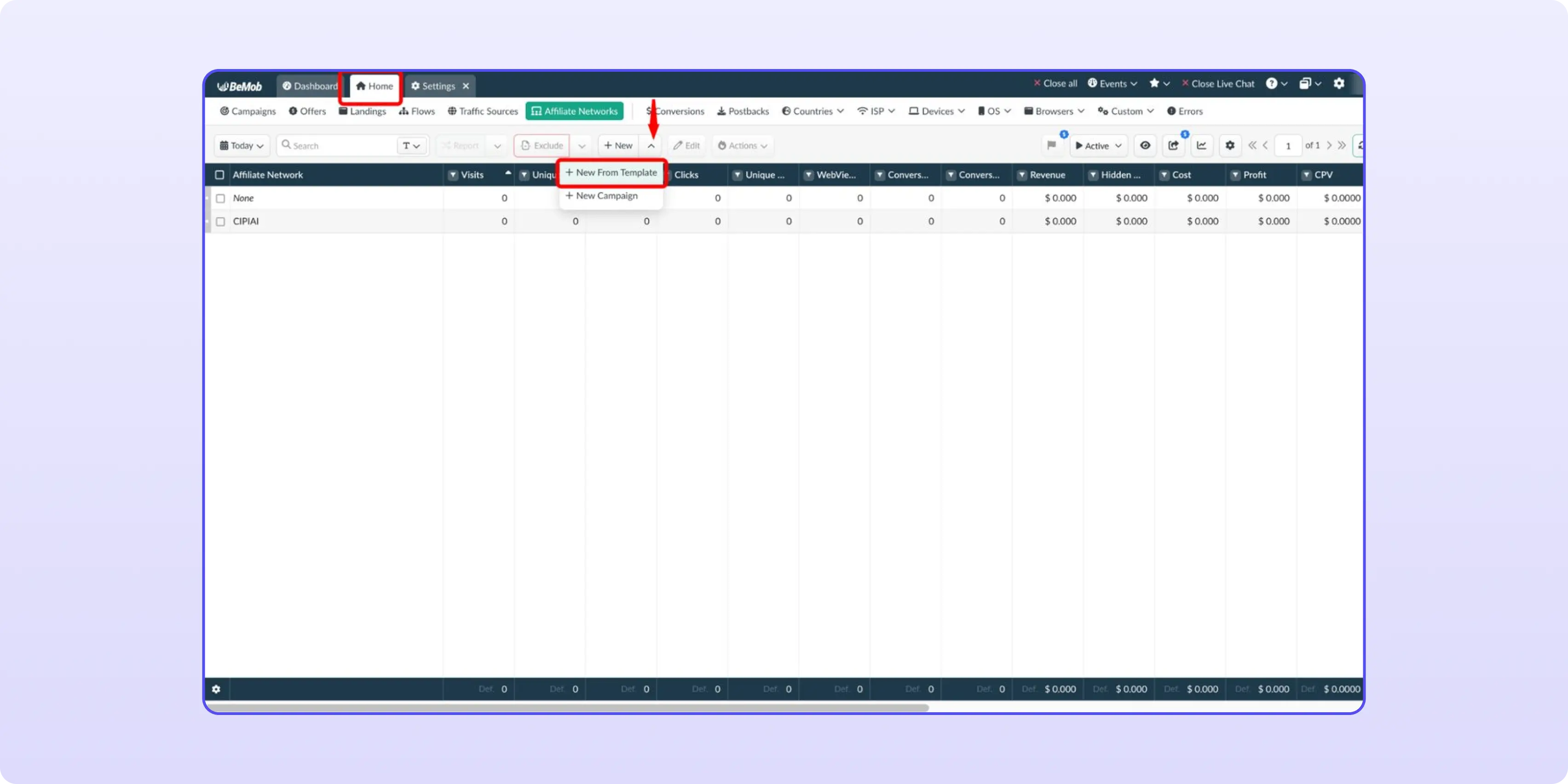
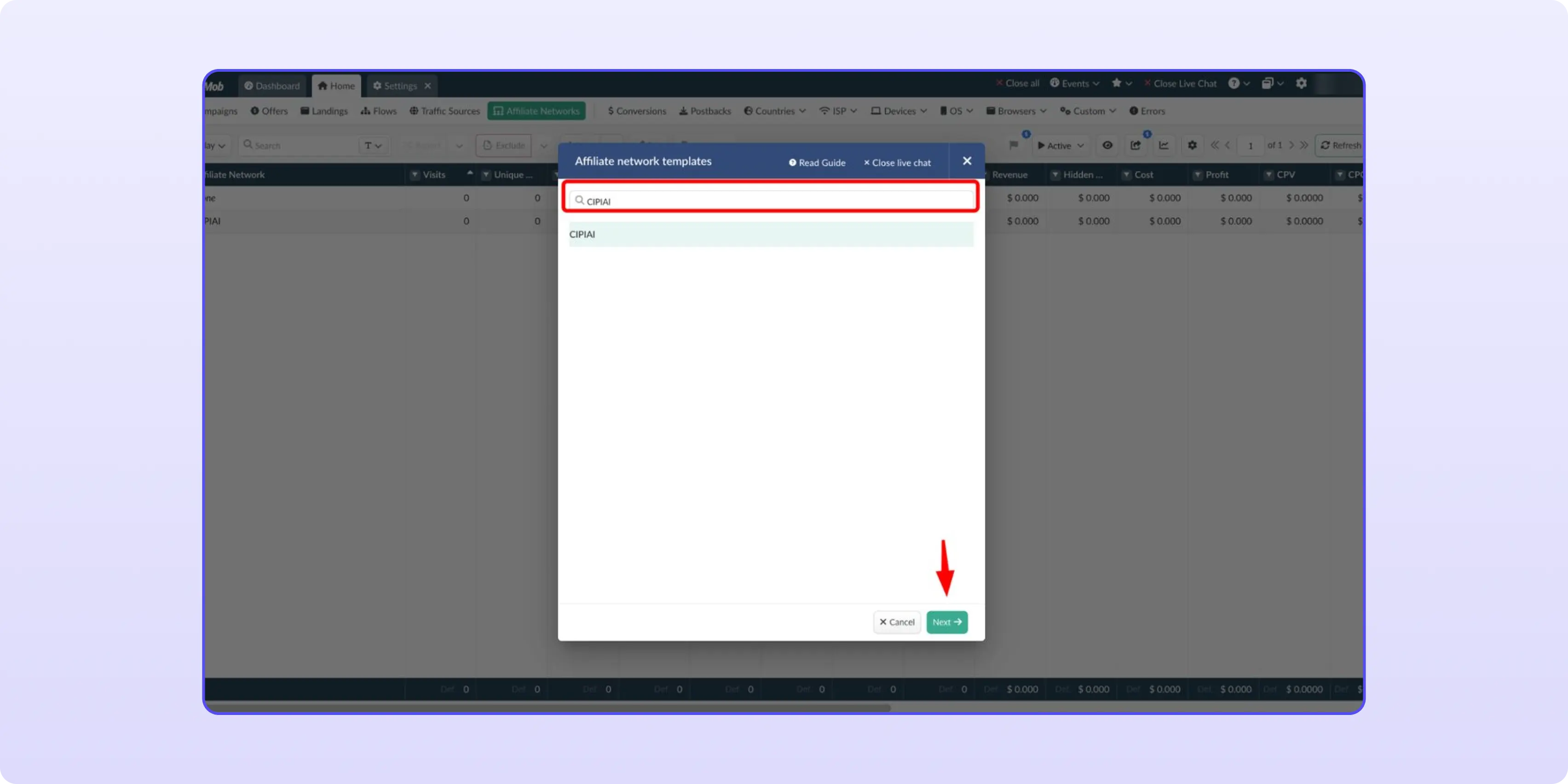
Go to Home → Affiliate Networks, open the arrow next to New and choose New From Template. Type "CIPIAI" in the search, select it and click Next.
The template fills the form for you:
click_id. BeMob adds it to every CIPIAI offer URL, which is how your click ID reaches CIPIAI and comes back in the postback.hold → New, approve → Approved, reject, decline → Declined.
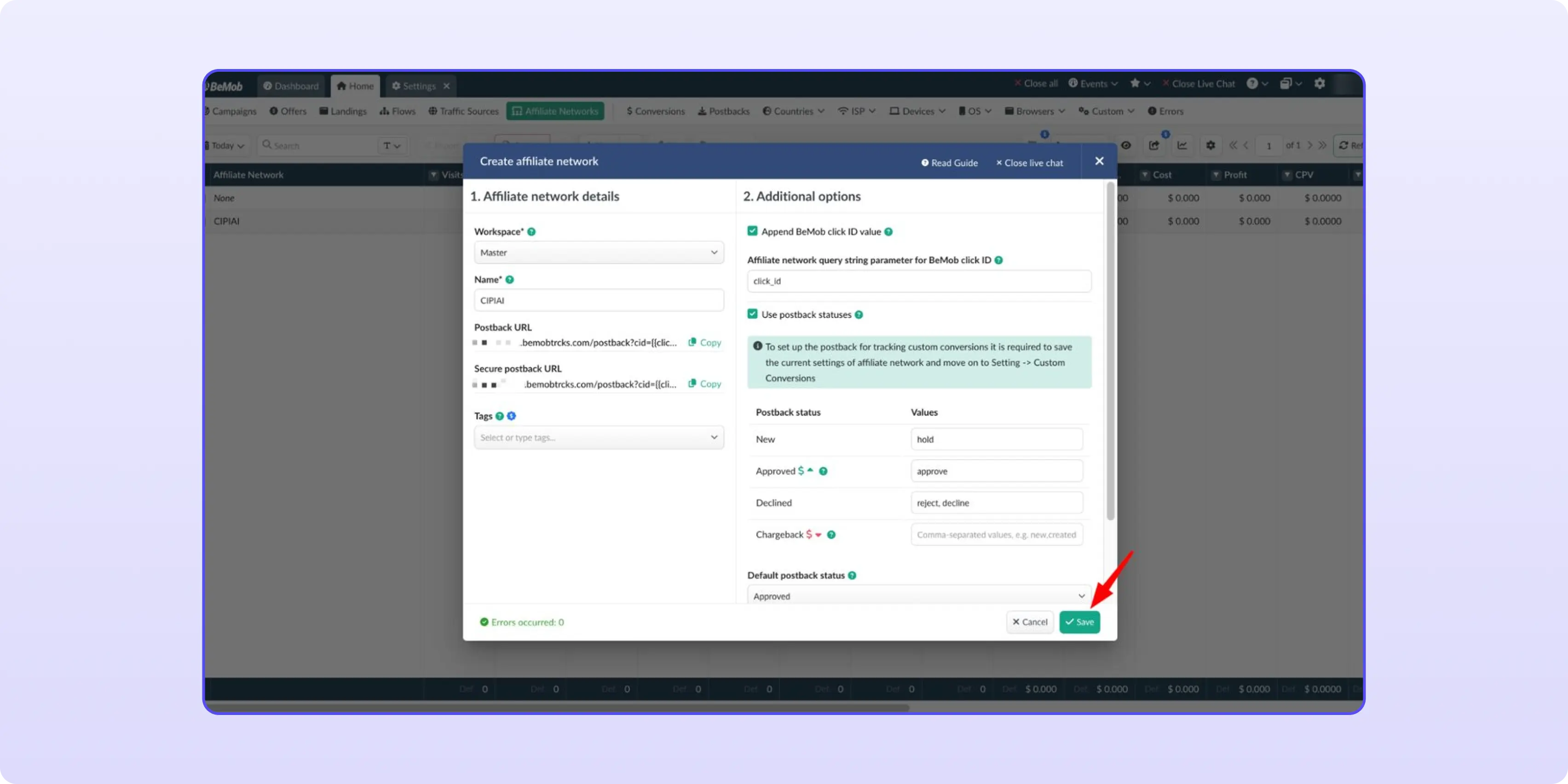
Click Save. You only add the network once per BeMob account.
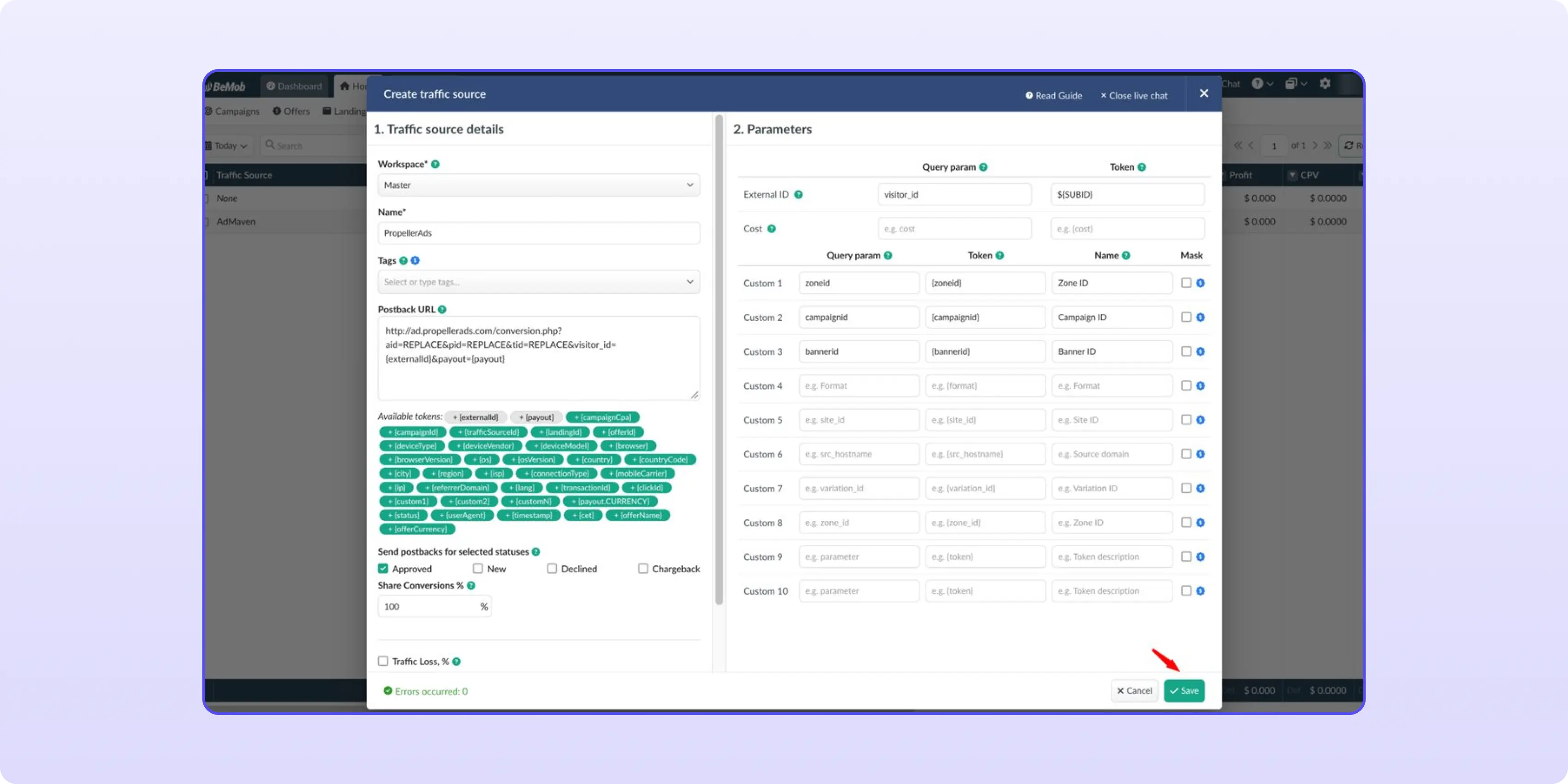
Open Traffic Sources, click the arrow next to New, choose New From Template and pick the network you buy from, for example PropellerAds. The template fills in the postback to the source, the External ID and the custom parameters.
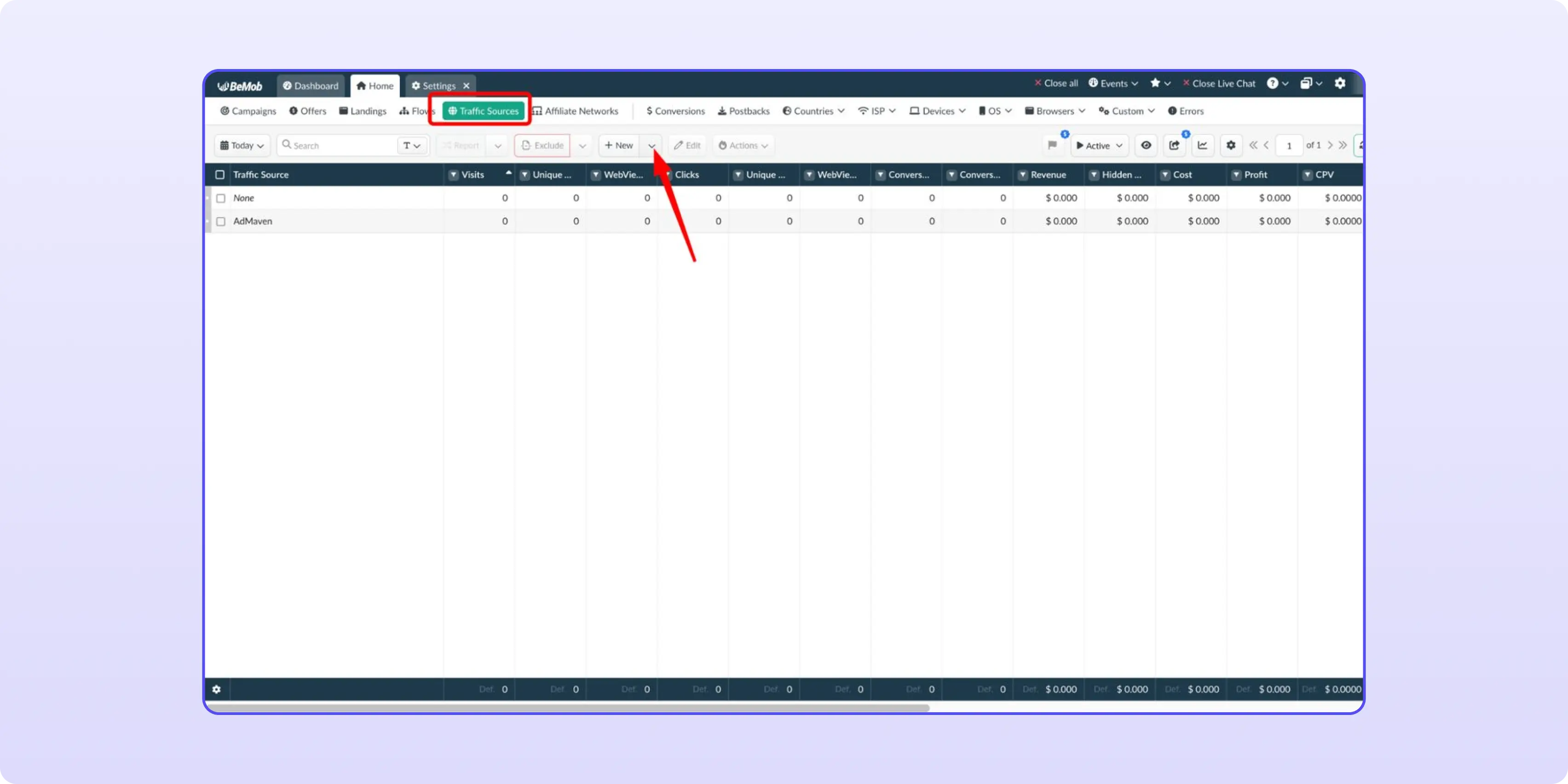
Under Parameters, find the row that carries the zone. In the PropellerAds template it's Custom 1: query param zoneid, token {zoneid}, name Zone ID. Remember the row number; you'll use it in the next step. Click Save.
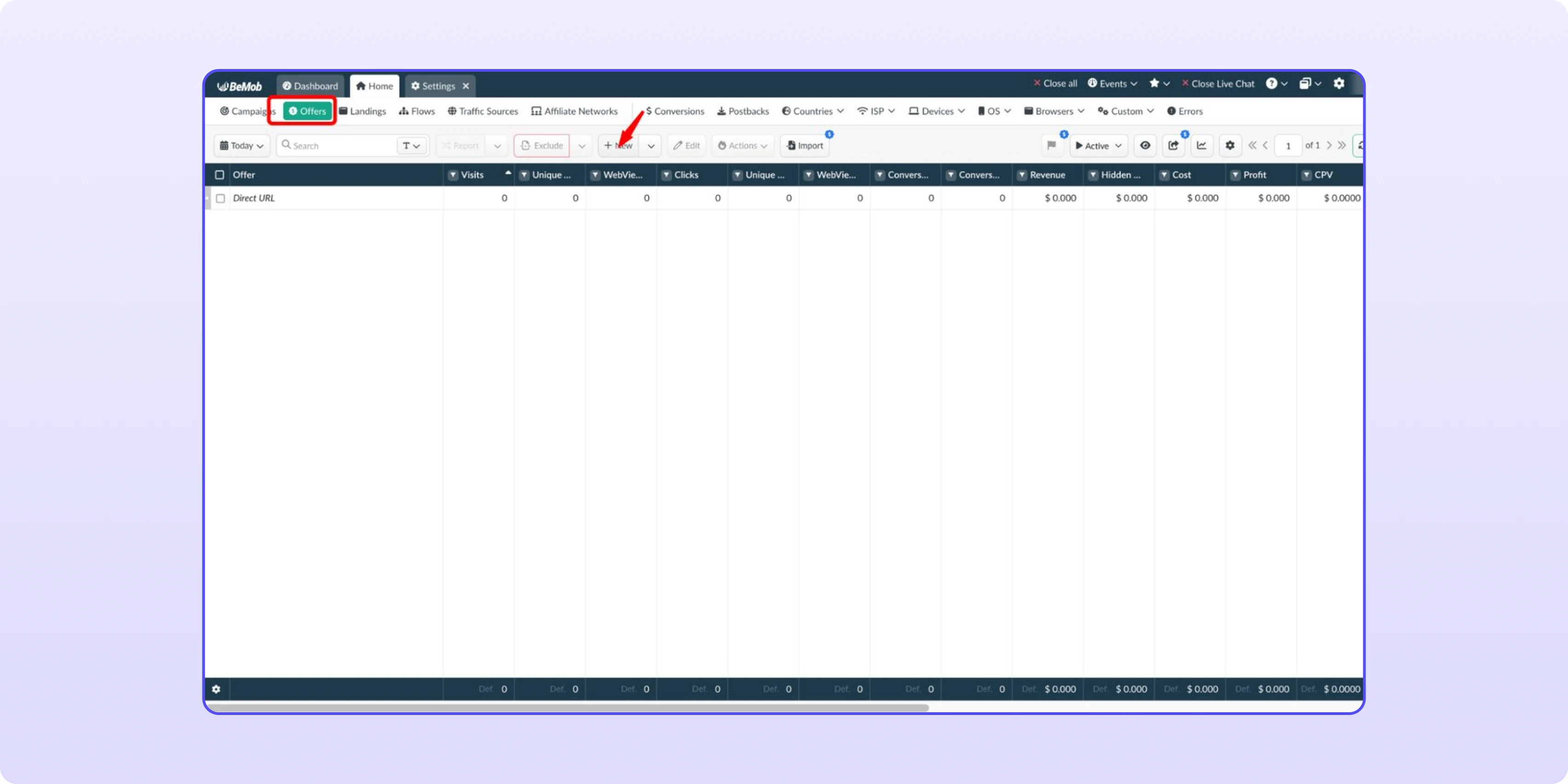
Open Offers → New and fill in:
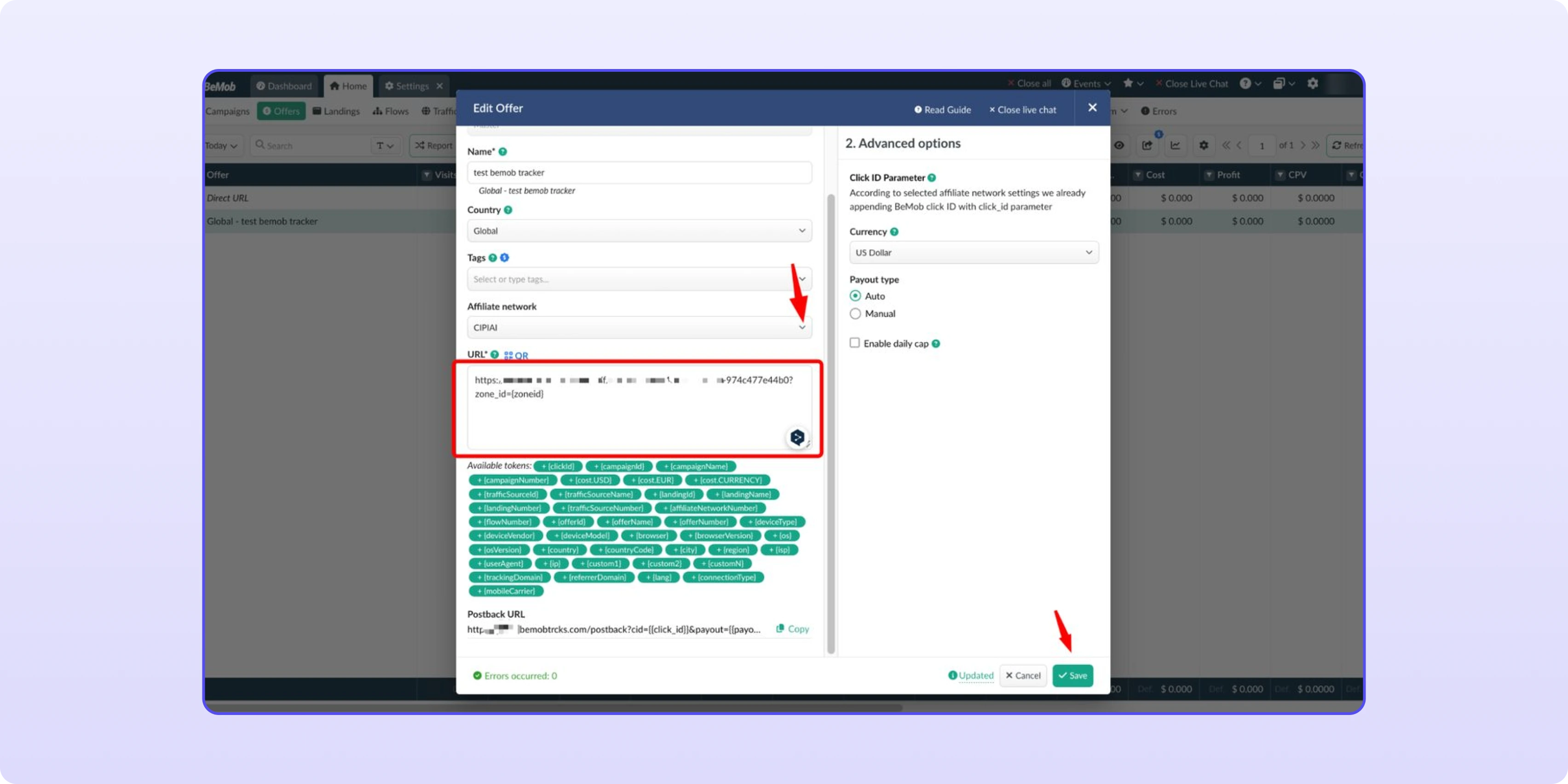
Add zone_id={zoneid} to the end of the flow link so CIPIAI statistics show which zone, placement or publisher each conversion came from:
https://your-cipiai-flow-link/f/8d18a04b-...?zone_id={zoneid}
{zoneid} is a dynamic macro, and its name depends on your traffic source template. In most templates the zone is passed in the first custom parameter, named Zone ID: open the source in Traffic Sources and copy the token from that row. On pop and push traffic, zone-level data is what lets you blacklist losing zones quickly, which our popunder ads guide covers in more detail.
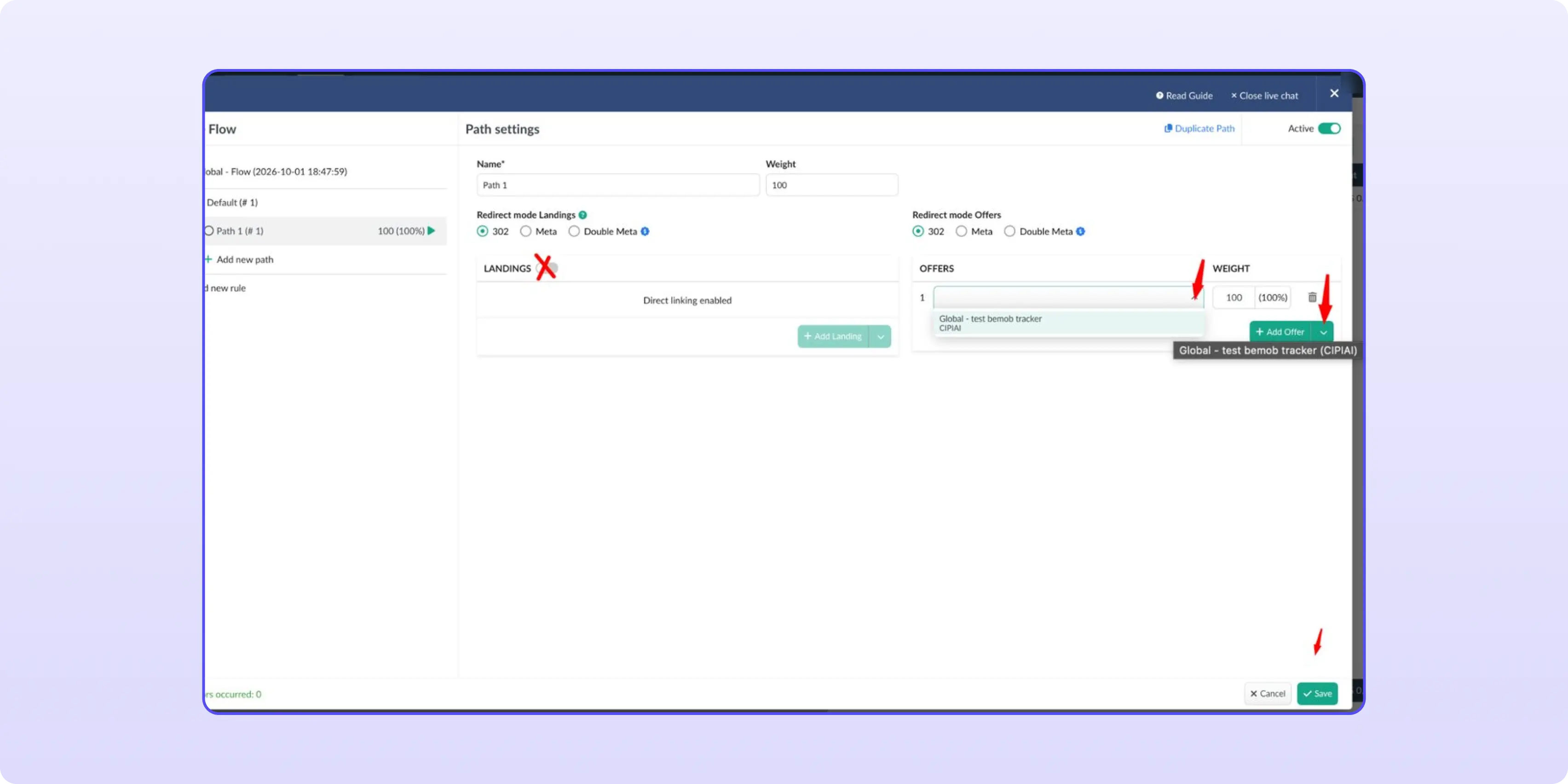
In BeMob, a flow decides where the campaign sends visitors. Open Flows → New:
1. If you run without a landing page, switch Landings off; the path shows "Direct linking enabled".
2. Under Offers, click Add Offer and pick the CIPIAI offer from Step 6.
3. Click Save.
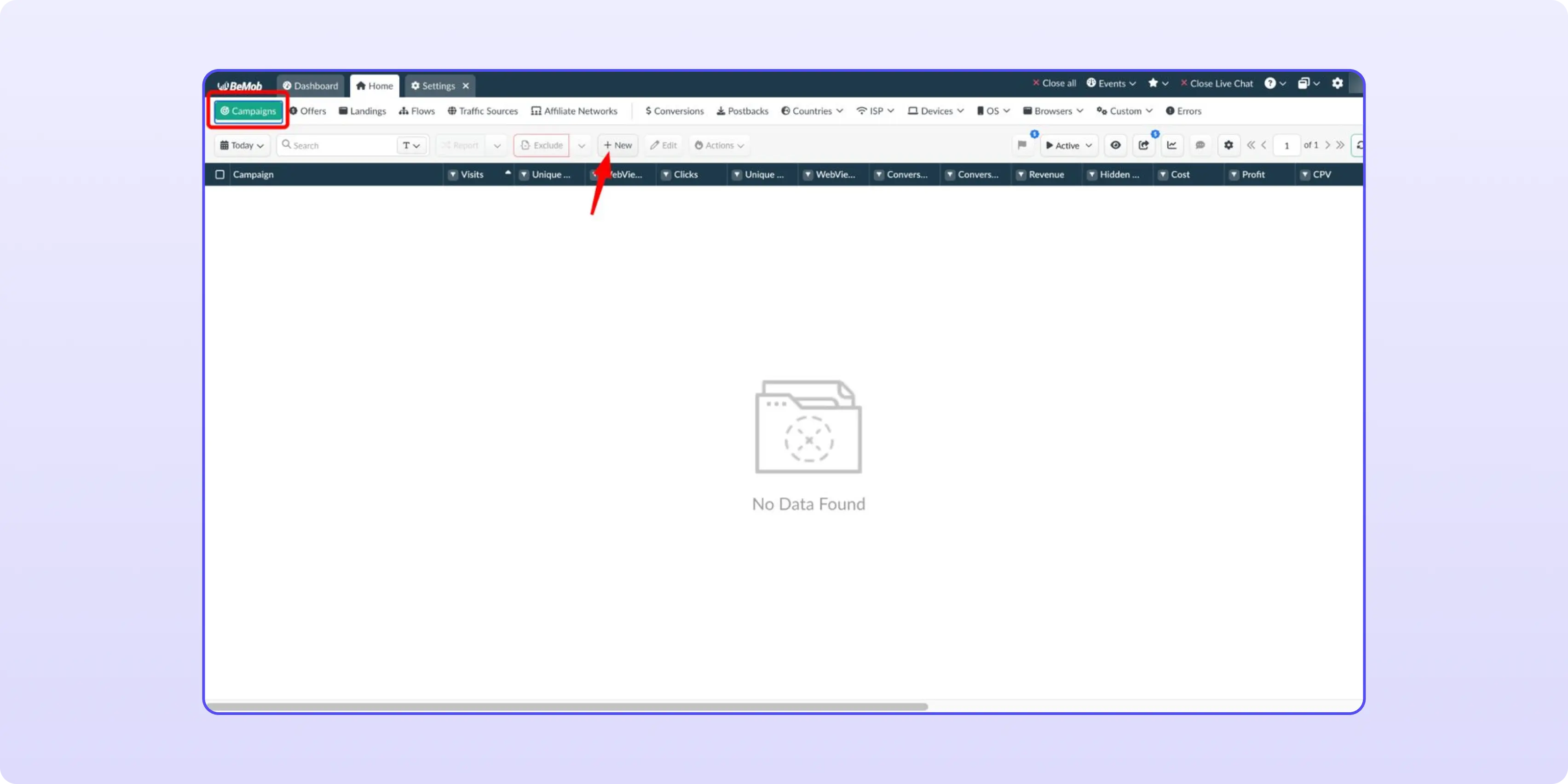
1. Go to Campaigns → New.
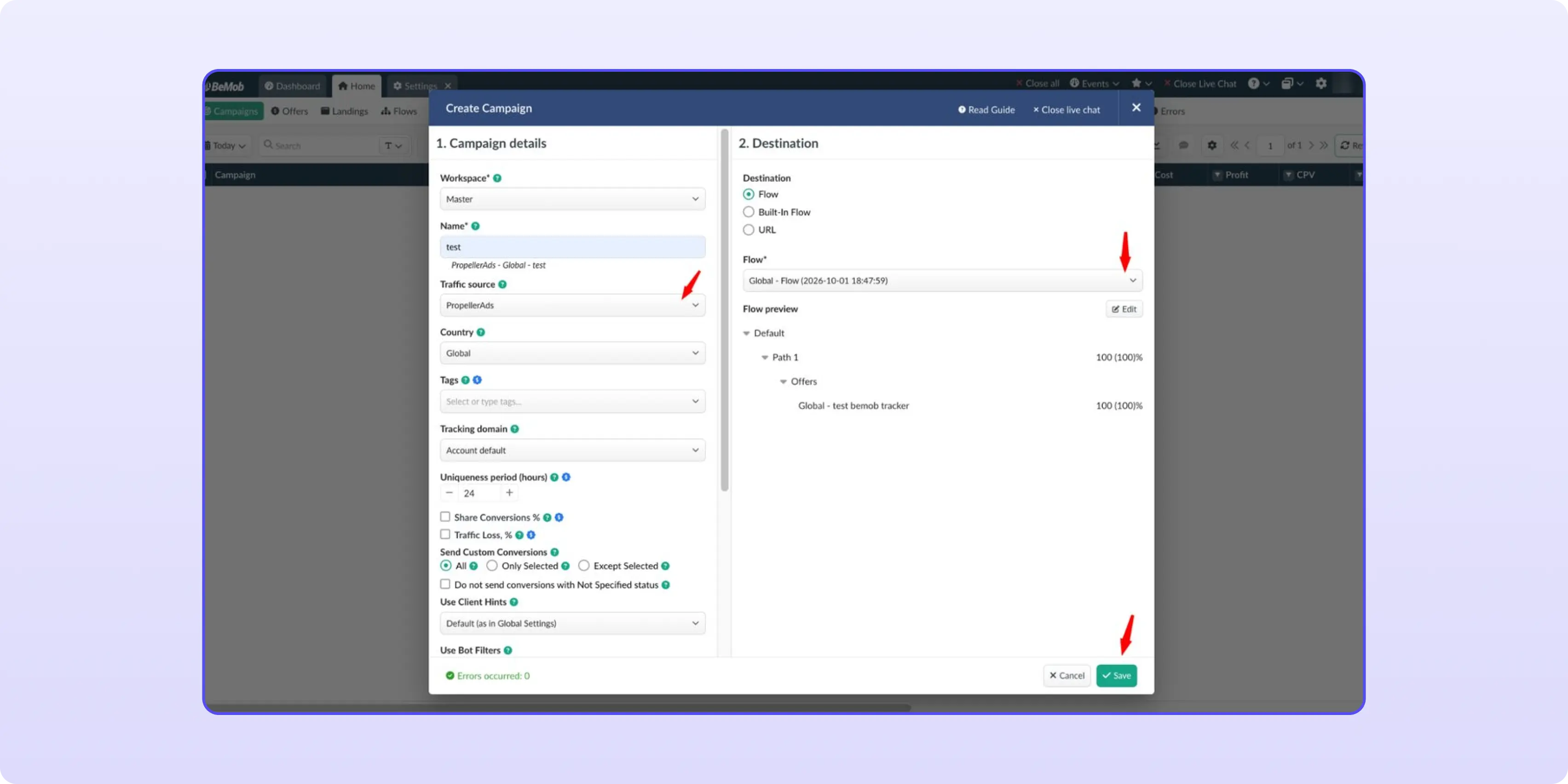
2. Enter a campaign name, select the Traffic source from Step 5 and your Tracking domain.
3. Under Destination, keep Flow and select the flow from Step 7.
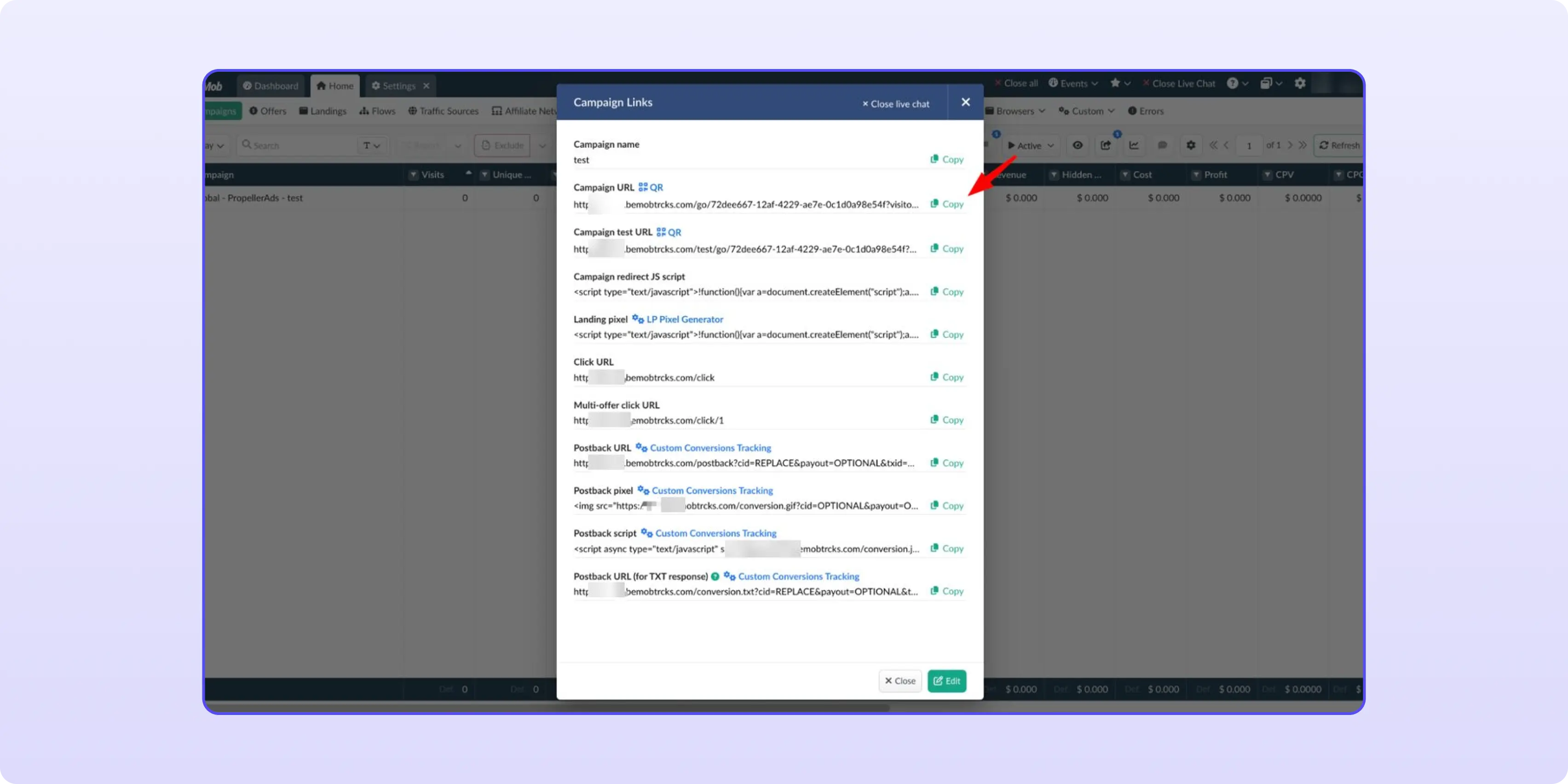
4. Click Save. BeMob opens Campaign Links; copy the Campaign URL and paste it into your traffic source as the destination URL.
The chain is complete: traffic source → BeMob campaign → BeMob flow → CIPIAI flow → offer, with conversions flowing back to BeMob through the global postback.
Yes. CIPIAI is in BeMob's affiliate network templates under Affiliate Networks → New From Template. The template appends the BeMob click ID as click_id and maps CIPIAI statuses to New, Approved and Declined.
In Tracking Tools → Postback → Global. A global postback applies to every flow you link it to, so you set it once and pick it from the list when creating each new flow.
{{click_id}}. CIPIAI receives the BeMob click ID through the click_id parameter in the offer URL and returns it in {{click_id}}, which BeMob reads as cid.
zone_id passes the zone, placement or publisher ID from your traffic source to CIPIAI statistics. Add zone_id={zoneid} to the flow link in BeMob; if your source template names the Zone ID token differently, use that token instead.
Only if you want them in your reports. Hold and Approve are enough to track revenue; adding Reject and Decline shows which sources or zones produce conversions that don't get confirmed.
Set up the global postback once, confirm one real conversion in BeMob, and only then clone the campaign across sources and GEOs. Running a different tracker? The same setup is in our Keitaro and Binom guides. CIPIAI runs direct tech offers (VPN, utilities, extensions) and SmartLinks for mixed traffic, covered in our SmartLink guide. NET30 with autopayments, from $50 via payment services.


Bisdev Solutions Limited
Room 701, 7/F, Lucky Centre, 165-171
Wanchai Road, Wan Chai, Hong Kong China
Copyright © 2026. Bisdev Solutions Limited
All rights reserved