How CIPIAI Affiliates Scale Tech Offers Using GDT Agency Accounts
How to scale CIPIAI offers faster? GDT’s Facebook, Google, and TikTok agency accounts give you higher limits, lower CPMs, and more stable growth in 2026.


Almost everyone running traffic on Facebook has experienced a situation where the algorithm decides to burn through half of the daily budget in just 10–15 minutes. Within a couple of hours, up to 70% of the campaign or ad set budget can be spent with little or no actual results. When the budget disappears that quickly, there's often no time to optimize the campaign or stop the spend before it's too late.
The good news is that budget overspending is not inevitable. There are proven ways to minimize the risks and regain control over your ad spend, even when Facebook's algorithms become overly aggressive.
One of the easiest and most effective ways to protect yourself from budget overspending is to use Facebook's automated rules. This built-in feature allows you to automatically enable or disable campaigns, ad sets, and ads based on predefined conditions. Automated rules are most commonly used at the Ad Set level, as this provides the best balance between spend control and performance optimization. However, they can also be applied at the campaign or individual ad level, depending on your goals.
You can configure them directly in Ads Manager. Select the campaign, ad set, or ad you want to manage. Then go to More → Create New Rule → Custom Rule → Next. This opens the settings window where you define the conditions that will trigger the rule.
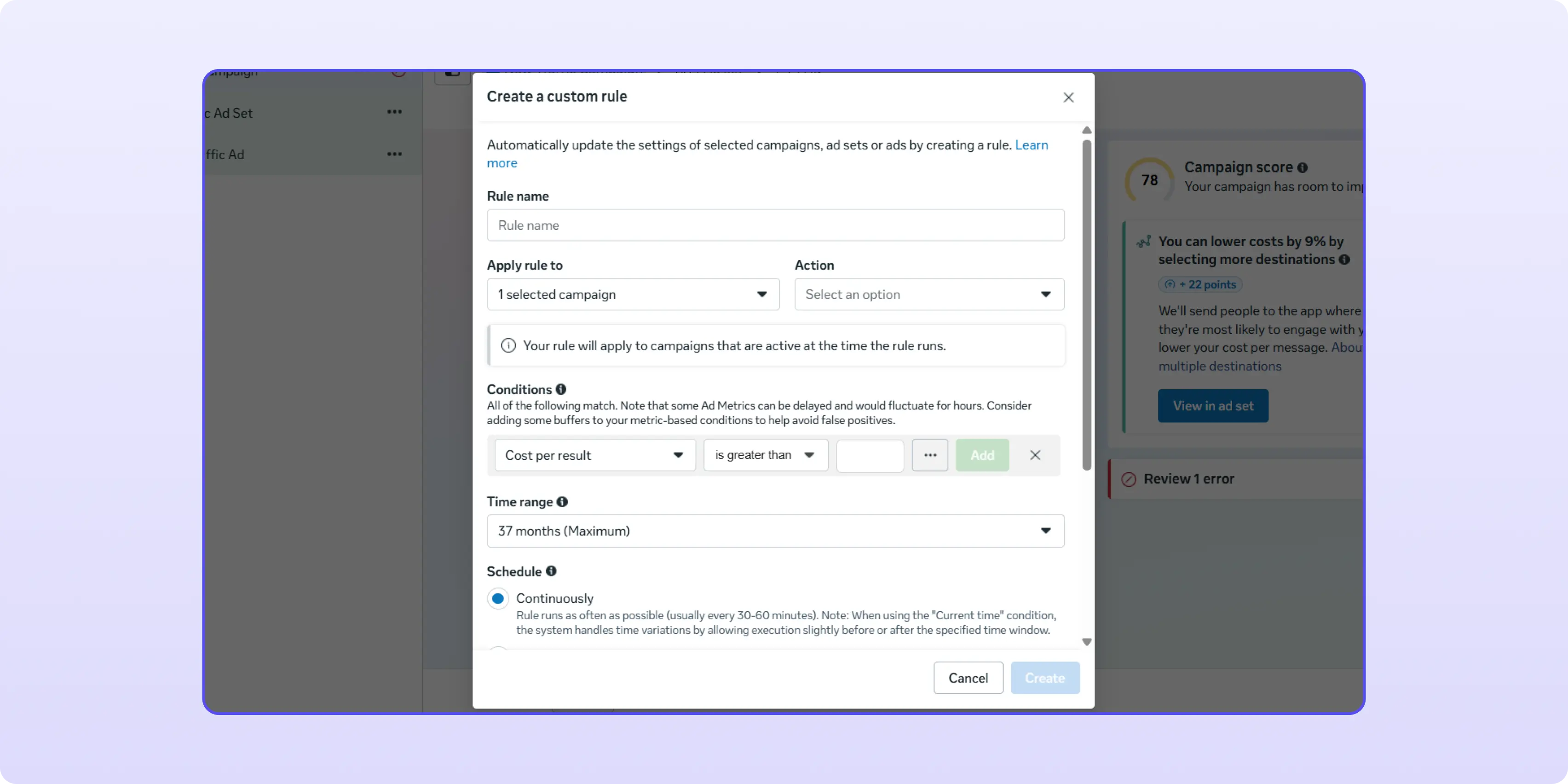
It's a good practice to give each rule a descriptive name that clearly explains what it does. A few weeks later, this will save you a lot of time and confusion. The enabled checkbox means the rule will only apply to the currently selected object—in this case, a specific Ad Set. If you want the rule to apply to all eligible ad sets, specify this under the "Apply this rule to" setting.
One of the most useful basic automation rules is automatically turning off an Ad Set that fails to generate leads after reaching a certain spend threshold. A common benchmark is 2–3 times your target Cost Per Lead. This usually provides enough data for the ad set to prove itself—or be paused if it isn't delivering results.
A typical rule might look like this:
Using the same logic, you can create rules to pause ad sets with an excessively high Cost Per Lead—for example, if CPL exceeds $4. You can also schedule ad sets to automatically turn on at midnight, allowing them to enter a fresh auction and potentially secure lower-cost traffic.
It's important to understand that automated rules are not flawless. During periods of high platform load, Facebook may execute them with delays—or occasionally fail to execute them altogether. That's why automated rules should be viewed as an additional safeguard rather than a complete solution for preventing budget overspending.
Another way to protect yourself from uncontrolled overspending is to set an account spending limit. This feature allows you to define the maximum amount your ad account can spend across all campaigns combined. The spending limit can either remain in place until you manually reset it or automatically refresh on a specific schedule—for example, on the first day of every month.
To configure this setting, go to Billing & Payments in Meta Business Suite and find the Account Spending Limit option.
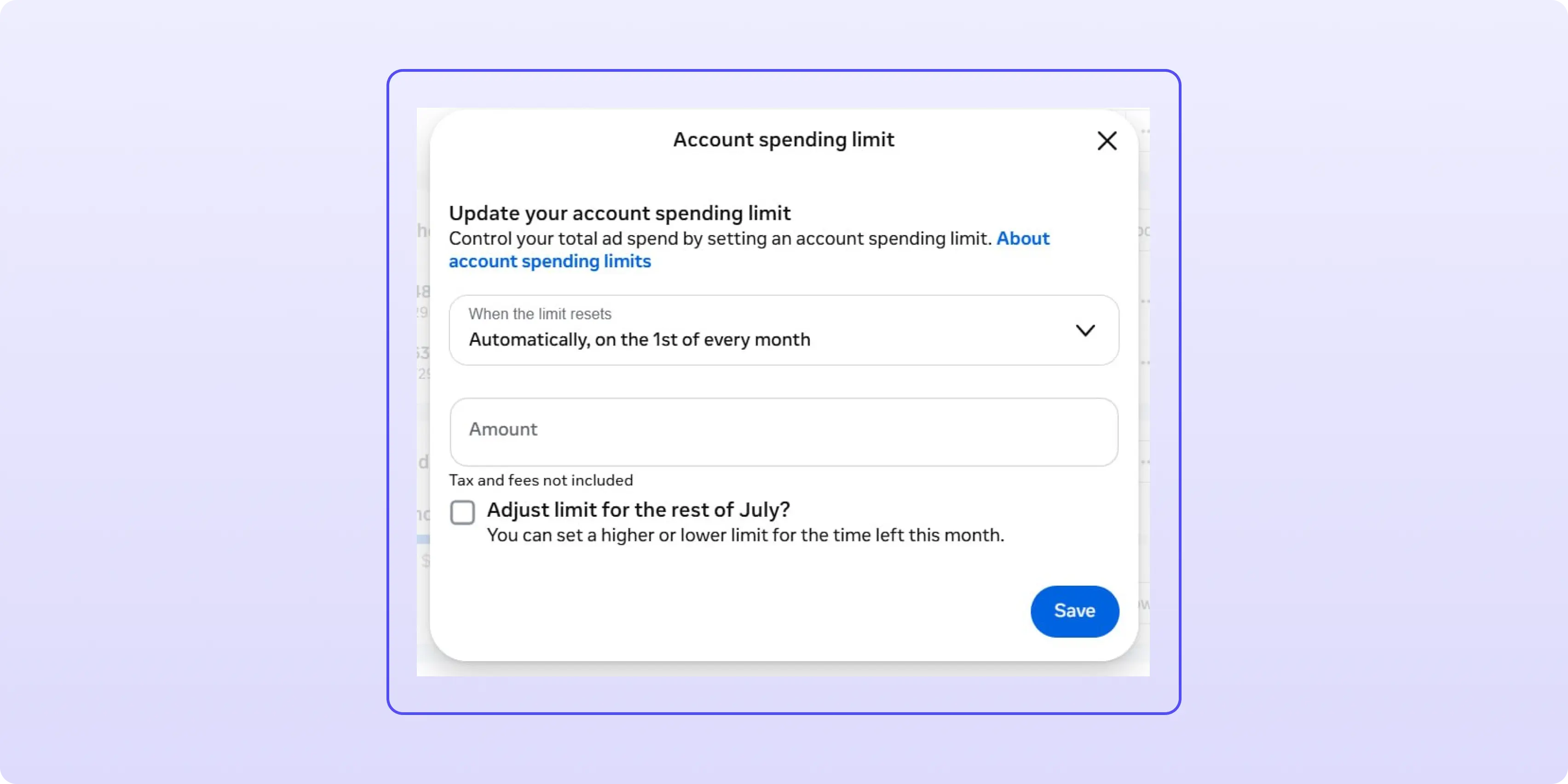
Once you save the changes, the limit typically becomes active within 10–15 minutes. If you need to continue running ads after the limit has been reached, you can increase it, remove it entirely, or reset the spending counter. This is an effective safeguard, but during aggressive scaling it can become a bottleneck, limiting campaign delivery and cutting traffic at the worst possible moment.
It's also worth noting that accounts using the Available Funds payment model cannot set an account spending limit through the account settings.
One of the most effective ways to keep your budget under control is to avoid letting Facebook decide how much it's willing to pay for each click or conversion. This is where Bid Cap and Cost Cap bidding strategies come in.
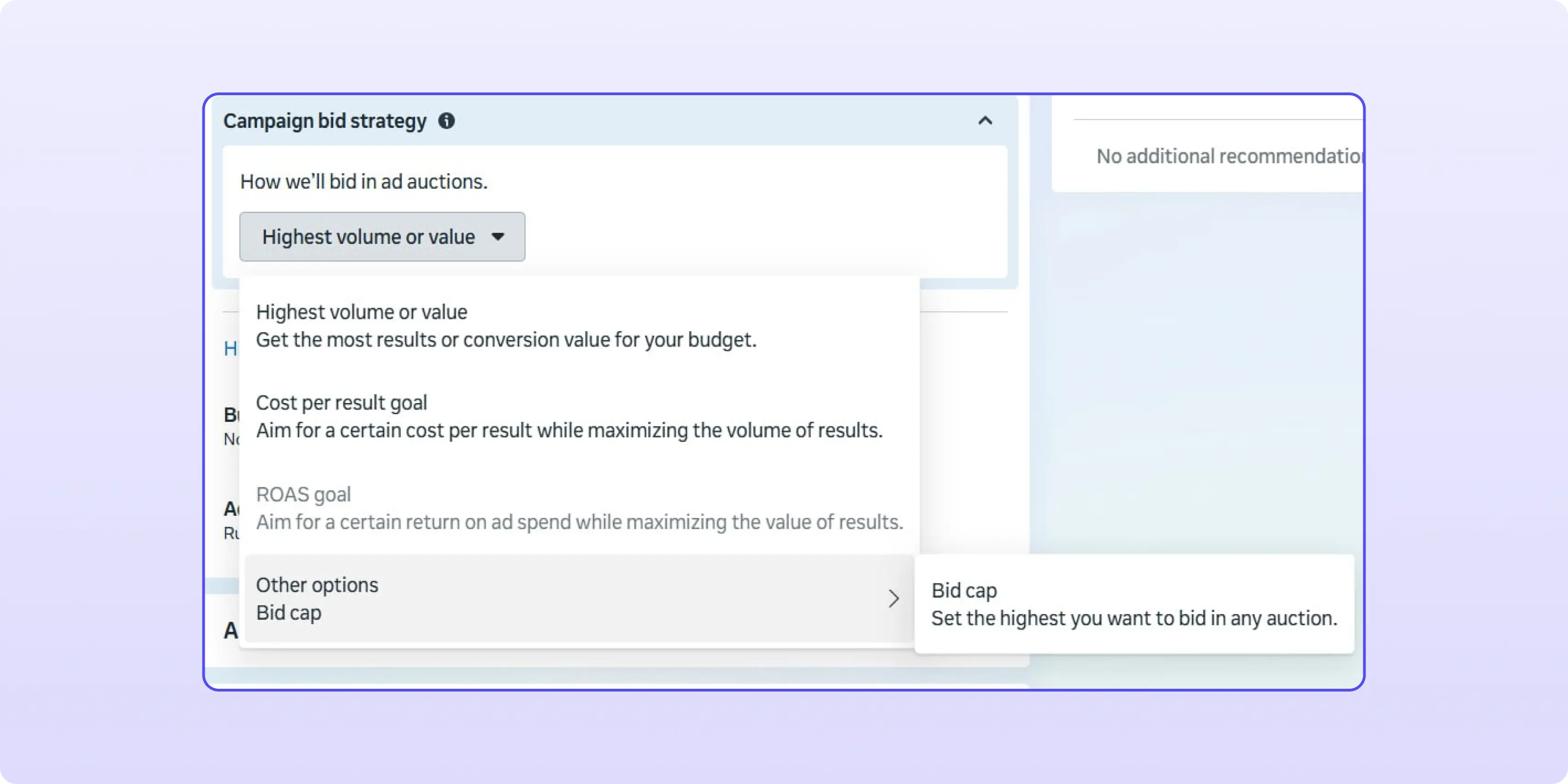
Bid Cap allows you to manually specify the maximum bid you're willing to place in every auction. Facebook will never bid above this amount for the selected optimization event. This strategy works well when you have a clear understanding of the true value of a click or lead and want strict control over your costs.
However, setting the Bid Cap too low can prevent your ads from entering auctions altogether. For example, if your maximum bid is $0.20, you may receive no impressions at all. If impressions are available at $0.22, Facebook still won't bid because your cap has been exceeded. As a result, your budget sits unused and your campaigns fail to deliver.
Cost Cap, on the other hand, lets you define your desired average cost per result—such as CPL or CPA—while maximizing the total number of conversions. The algorithm attempts to maintain your target cost, but it may temporarily exceed it if doing so helps generate cheaper conversions overall or distribute your budget more efficiently. In practice, the advertiser specifies a comfortable target cost, while Facebook automatically identifies the auctions most likely to achieve that goal. Facebook may exceed your target by roughly 10% in some cases, or it may deliver results significantly below your specified cost.
Compared to Bid Cap, Cost Cap offers several advantages:
The main downside is a longer learning phase, especially when the volume of target conversions is either too low or suddenly increases significantly. In these situations, Facebook may not spend the entire allocated budget.
Budget overspending most often occurs when running campaigns on self-registered accounts or agency accounts that don't have strict spending limits in place. In these cases, Facebook can easily spend beyond the intended budget, and advertisers only realize it after the charges have already been made.
With RentAcc agency accounts, this problem doesn't exist. Every account comes with a predefined spending limit, regardless of whether it's a card-funded account or a credit line account. The spending limit is always equal to the amount deposited.
For example, if you top up an account with $300, the account spending limit is automatically set to $300. Even if Facebook's algorithms become aggressive, it's physically impossible to spend more than that amount—the ads simply stop delivering once the limit is reached.
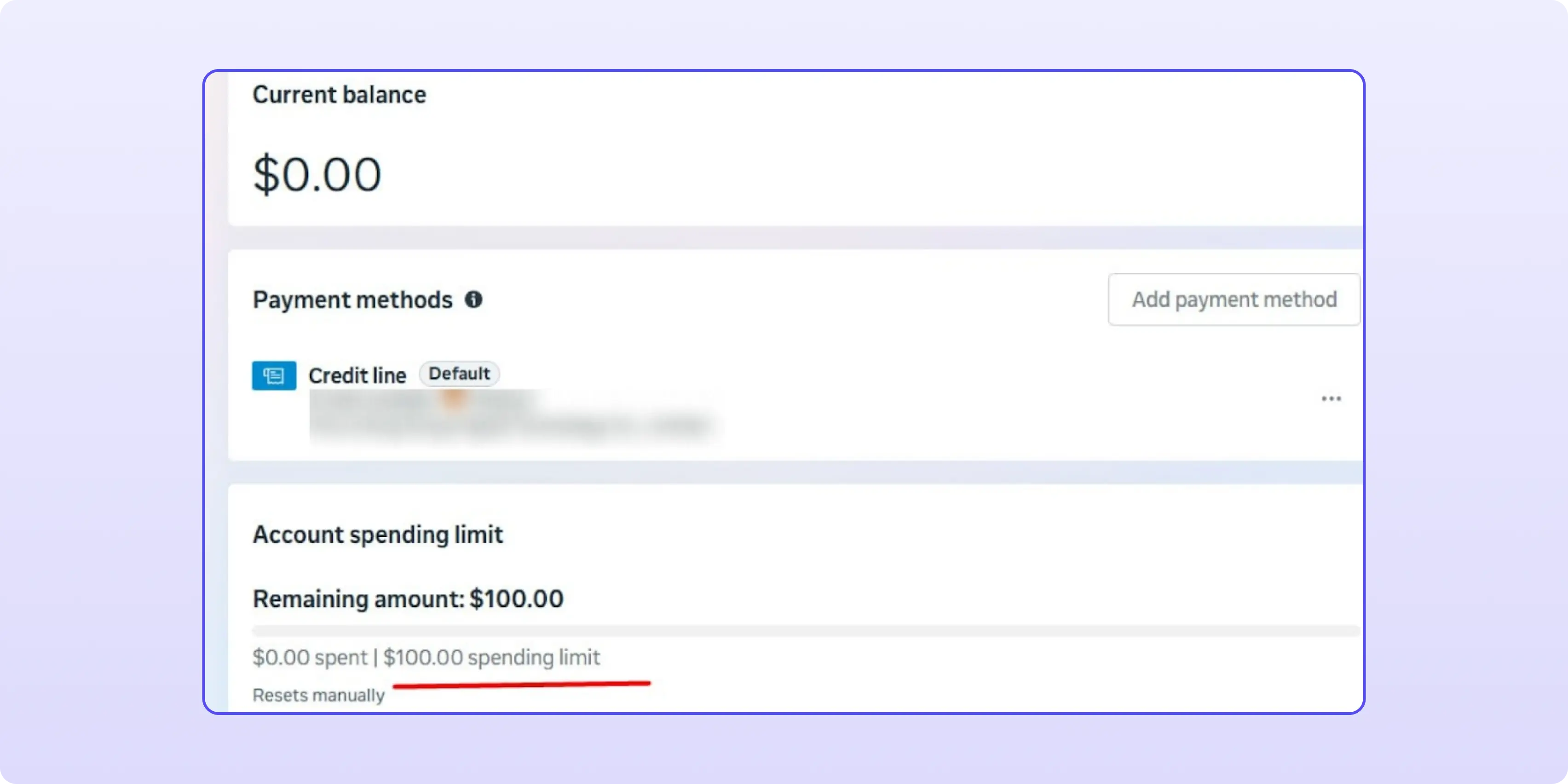
RentAcc provides both card-funded and credit line agency accounts that are fully prepared for launch and require no additional setup.
All account management is handled inside the RentAcc CRM platform with built-in automation:
The Facebook account terms are as follows:
Further conditions depend on your monthly spending volume. This setup is especially convenient for teams that want predictable budget control without worrying about unexpected overspending.
The tools covered in this article solve the infrastructure side of the problem: your campaigns won't spend beyond the defined limit. However, if your offer doesn't convert well on Meta, there's nothing to optimize—the budget stays within limits, but there's still no profit. That's why choosing the right offer should come before configuring bids and automation rules.
The following verticals have historically performed well on Meta traffic and don't require overly aggressive creative angles:
CIPIAI's offerwall includes offers in both of these verticals, featuring direct payouts, S2S postbacks, and on-time payments. Once your Meta budget is protected, see our related guide on Utilities CPA Offers: Traffic Sources, Funnels, and Networks That Actually Pay and check the live offerwall.
Set an automated rule at the ad set level that pauses delivery once spend crosses 2-3x the target cost per lead with zero results. It reacts faster than manually checking Ads Manager and works as a first line of defense alongside an account spending limit.
Bid Cap sets a hard ceiling on what Meta can bid per auction, giving strict cost control but risking zero delivery if it is set too low. Cost Cap targets an average cost per result across all conversions and can exceed that target on individual auctions to keep delivering, usually producing a lower blended cost over time.
No. Once the account-wide spending limit is reached, delivery stops across every campaign on that account. The limit takes 10-15 minutes to activate after saving, and accounts on the Available Funds payment model cannot set one at all.
There is no universal way to completely eliminate Facebook budget overspending. The platform's algorithms operate according to their own logic, and sometimes advertisers inevitably pay the price.
The most practical approach is to combine multiple protection mechanisms—automated rules, account spending limits, and bid controls.
The most reliable solution, however, is to eliminate the possibility of overspending altogether. Running campaigns through RentAcc agency accounts with predefined spending limits allows you to maintain full control over your ad spend without worrying that your budget will disappear before you intended it to.


Bisdev Solutions Limited
Room 701, 7/F, Lucky Centre, 165-171
Wanchai Road, Wan Chai, Hong Kong China
Copyright © 2026. Bisdev Solutions Limited
All rights reserved